











Adding Customer-Centered Bundling to your Shopify Store
For every online store on the web, social proof plays a significant role in conversions. It influences people to purchase a product by showing what other people think about the product. Social proof comes in many forms, but one of the best types of social proof is from social media. With that being said, in the past, developers could easily display images through the Instagram API. Now, to display your Instagram feed, you need to integrate a third-party app to display the posts from a source. Now, at the moment, Elfsight serves that purpose by providing no-code solutions for store owners to use. In just a few clicks and some code (which I will show), you will be able to add an Instagram feed to your home page. I recommend a basic knowledge of HTML, CSS, Liquid, and the process of making sections on your online store.
Requirements
- Basic understanding of HTML, CSS, and Liquid
- Knowledge of how to navigage admin side of Shopify store
- An account with Elfsight
- An active Instagram account
No need for advanced mastery for any of these items, but I recommend for anyone reading to at least understand how to improve the following solution.
-
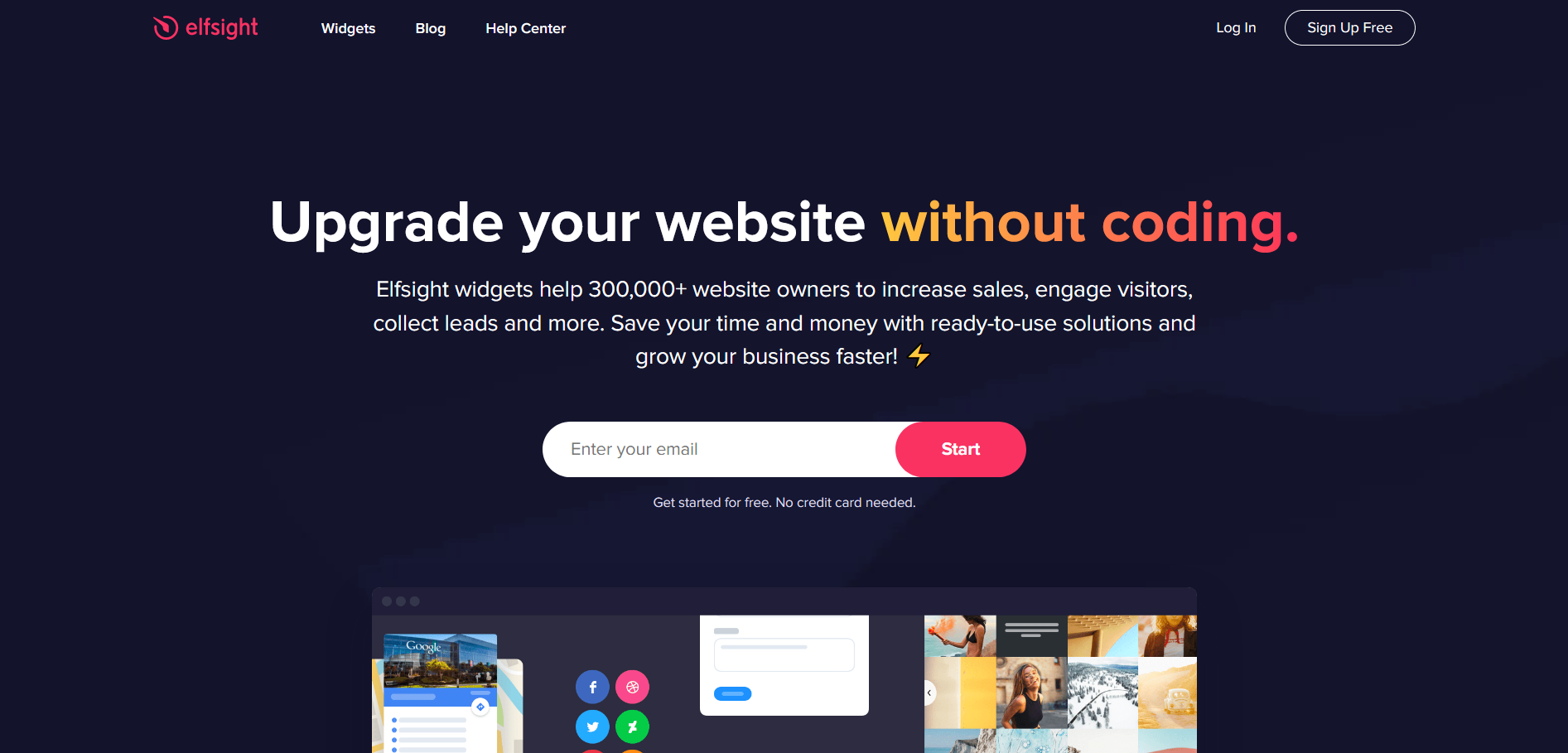
Go to elfsight.com, and sign up for a free account.
-
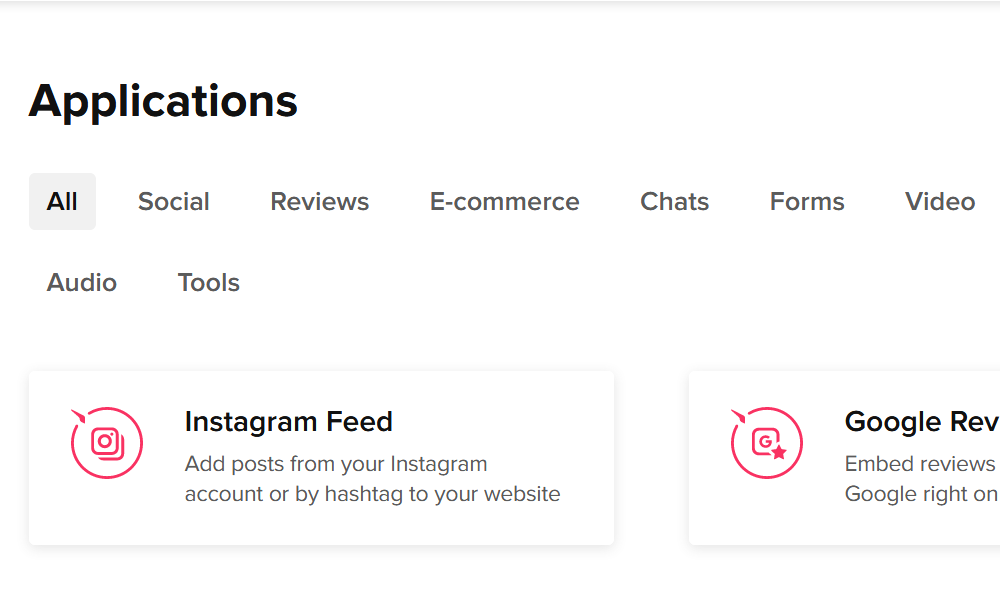
Select the Instagram feed option from Applications menu.
-
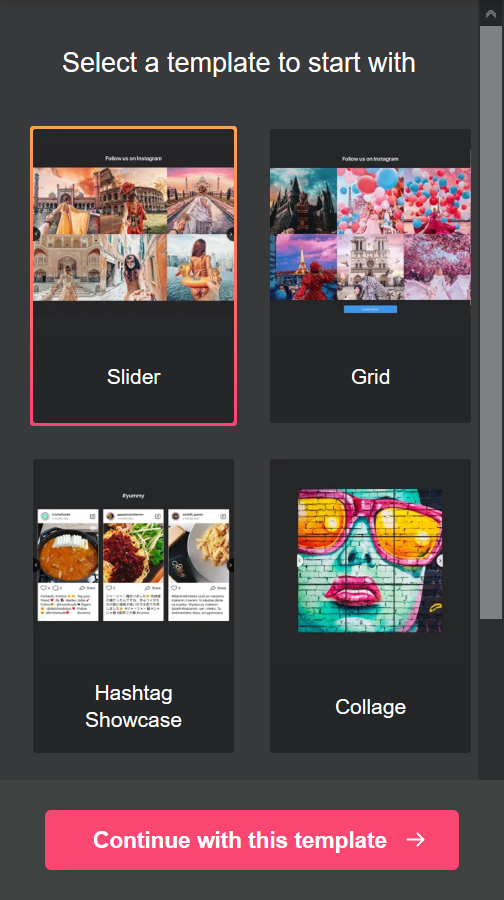
Choose a template
-
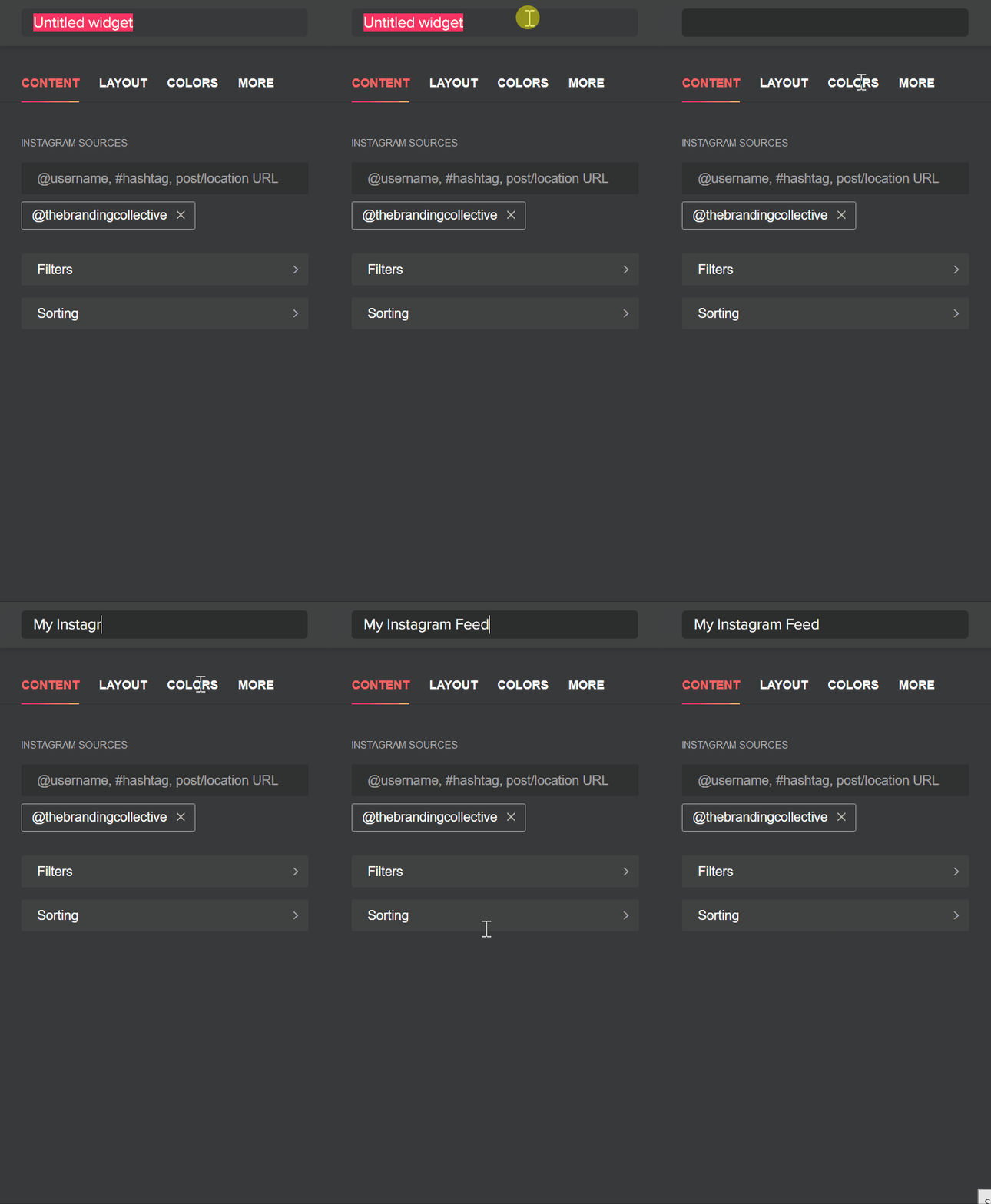
Add details like name of feed and source.
-
To remove load more button.
.eapps-instagram-feed-posts-grid-load-more{ display: none !important; } - Navigate to your admin for your store, and add a new section and paste the following code over the code in your new section.
{{ section.ig_html_area }} {% schema %} { "name": "Instagram Feed", "settings": [ { "type":"text", "id":"section_title", "label":"Section Title", "default":"Our Instagram" }, { "type":"text", "id":"section_description", "label":"Section Description" }, { "type": "html", "id": "ig_html_area", "label": "Custom HTML for Elfsight", "default": "" } ], "presets":[ { "name": "Instagram Feed", "category": "Social Proof" } ] } {% endschema %}Some HTML content
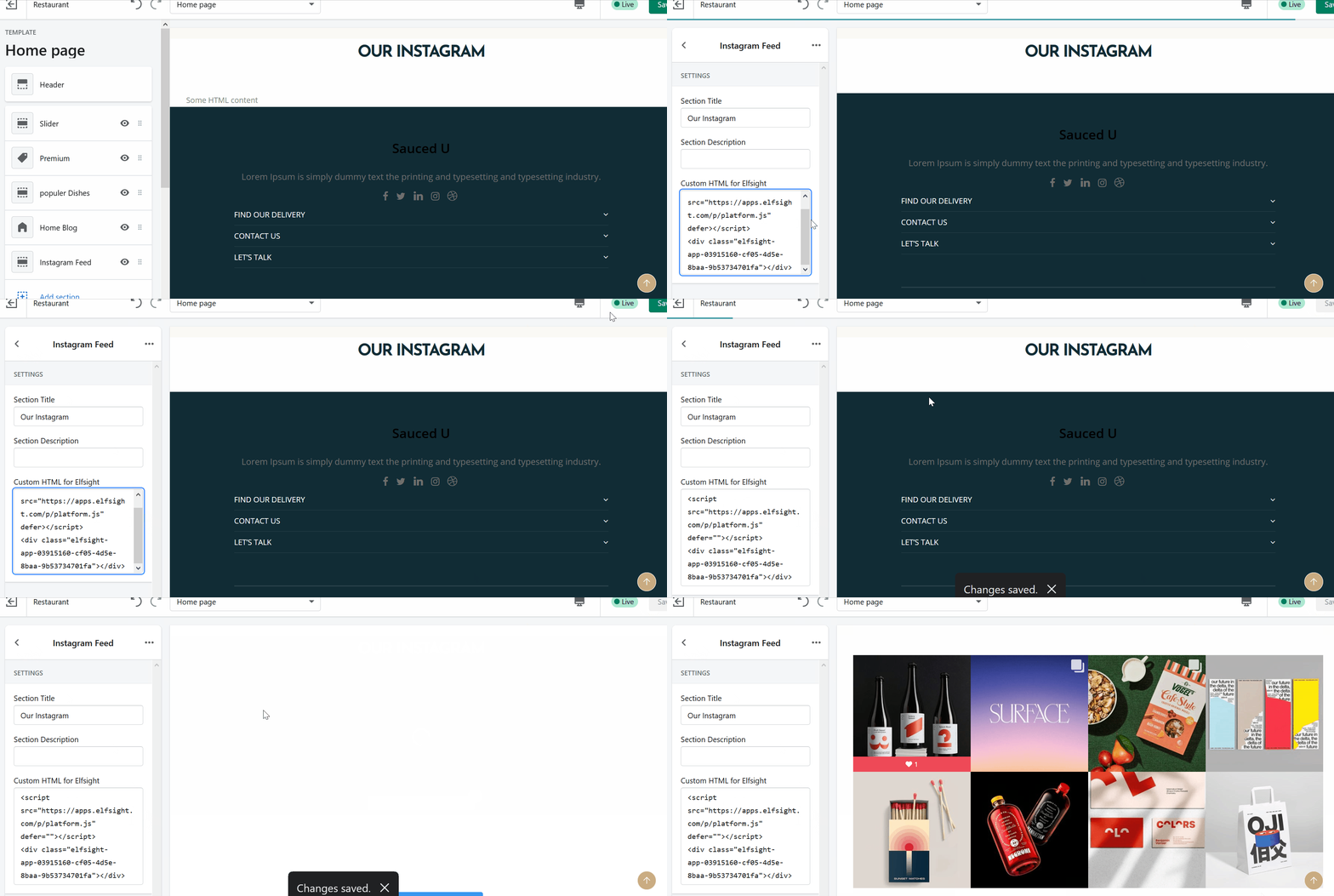
- Now, go to your Theme Editor and add your the new section.
- Copy and paste script from Elfsight for your specific feed into theme.
Elfsight provides many more widgets for the purposes of providing various means of social proof. My goal is to show you how to add an Instagram feed to your store. Hopefully, you have a better idea of how to do this yourself.